Data Masker -Import/Export Wizard
In the Data Masker application, the user can create a Configuration that is used for the Data Masking process.
This document showcases how Data Masker Configuration can be transferred from one org to another in order to efficiently migrate data from sandbox to production using the Import/Export feature of the Data Masker application.
Note – This feature is available from DM 1.26 Release version onwards.
Solution
- Navigate to the Configuration tab in the application. Users will see all the Configurations which are created and ready to export.
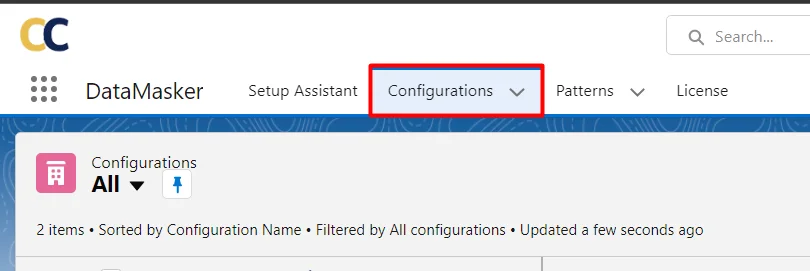
-
Users will find the Export and Import button on this page.
Export: The user can Export the Configuration from the current org and can import it to the current or destination org.
Import: The user can import the mapping which is exported from the source org.
Note- While importing the Configuration user needs to make sure that all the objects, fields and Patterns which are available in the Exported file(JSON file) are available in the Destination org.
- User will see the ‘Export’ button, Click on it.

- Here, the user will see all the configurations that the user can Export; the configurations which are not required to export, the user can cancel by clicking on the ‘Close’ symbol.
- After closing the unnecessary Configuration user will see only the Configuration that needs to be exported.
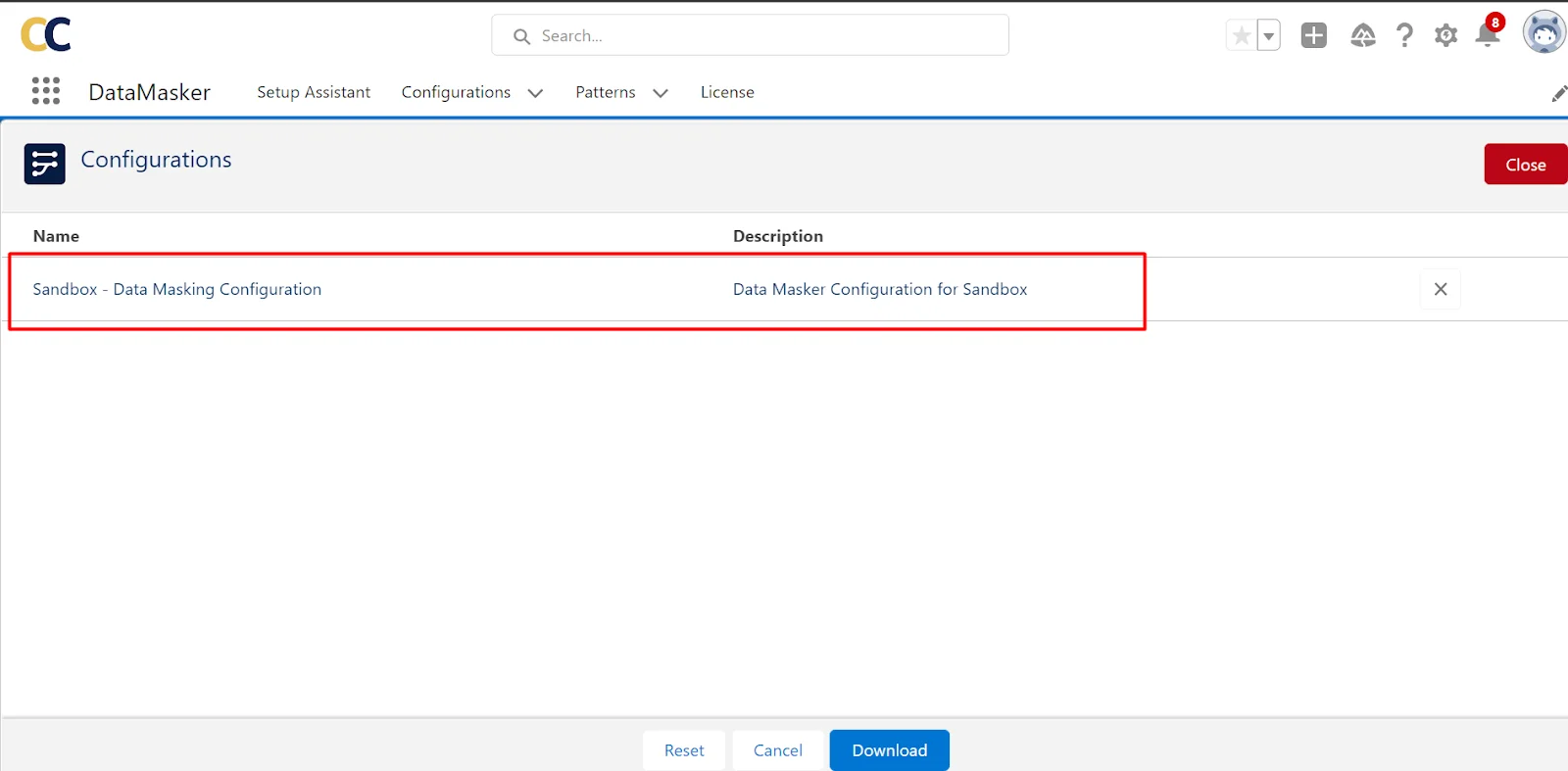
- Click on the ‘Download’ button to save the configuration in the System. It will download the file in the format of JSON.
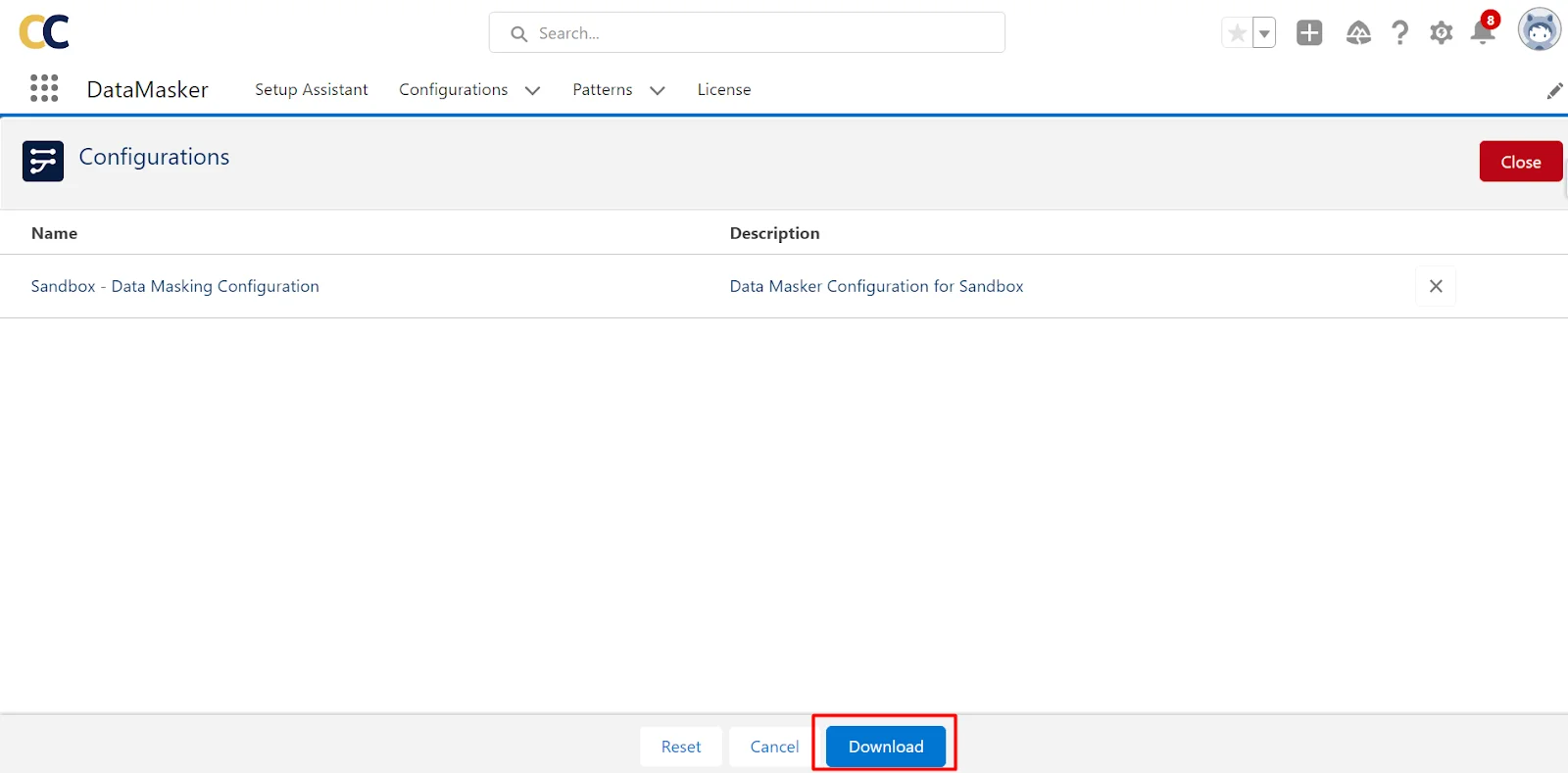
- After clicking on the ‘Download’ button the file will be downloaded
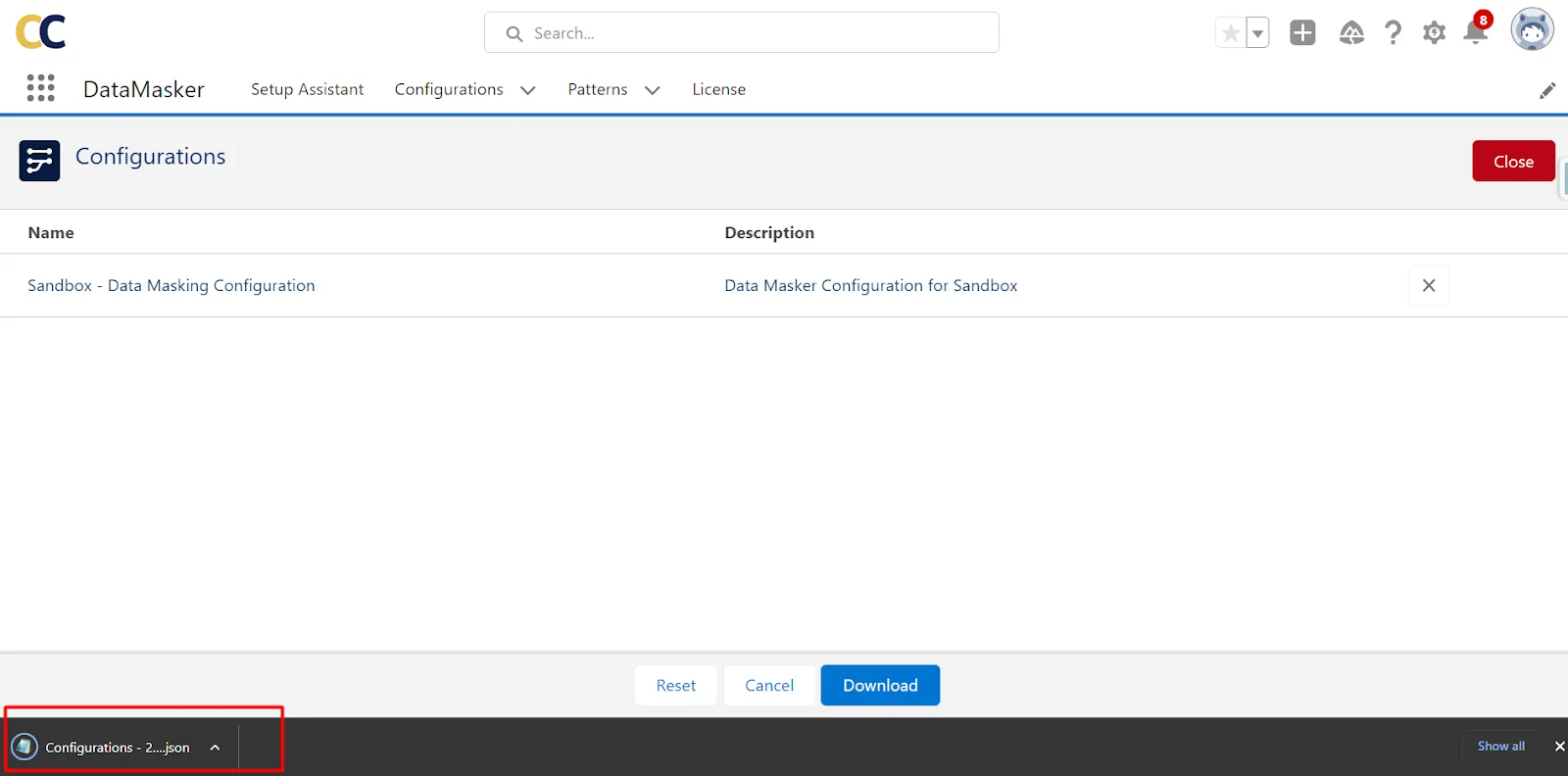
All set, the Configuration is Downloaded successfully.
- Now, go to the Destination org in which the user wants to Import the Configuration to run the DataMasker.
- Navigate to the Configuration tab, the user will Import Button there.

- Click on the ‘Import’ button, it will take the user to the page where the user needs to upload the JSON file which is to be imported into the destination org.
Click on the Upload Files button
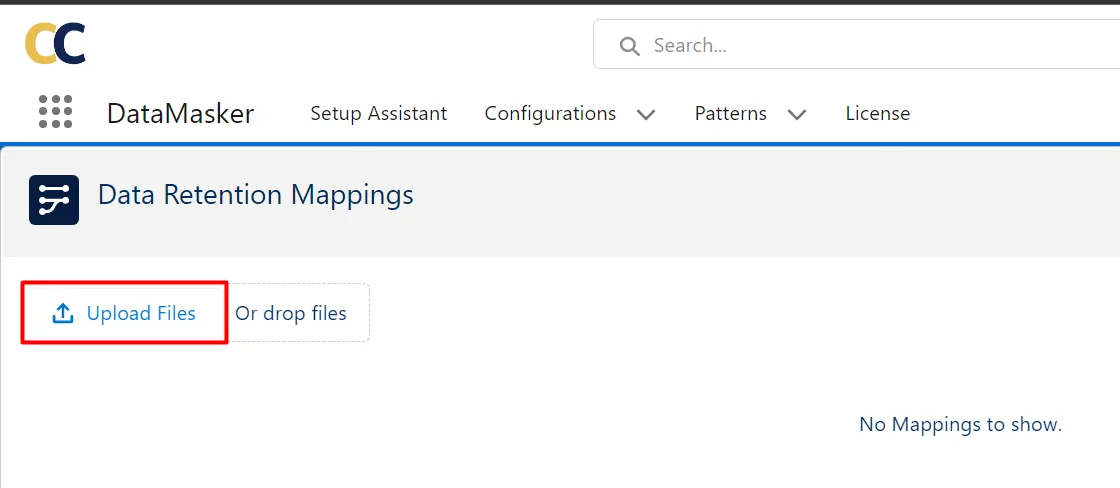
- Select a file from the System and click on the Upload button
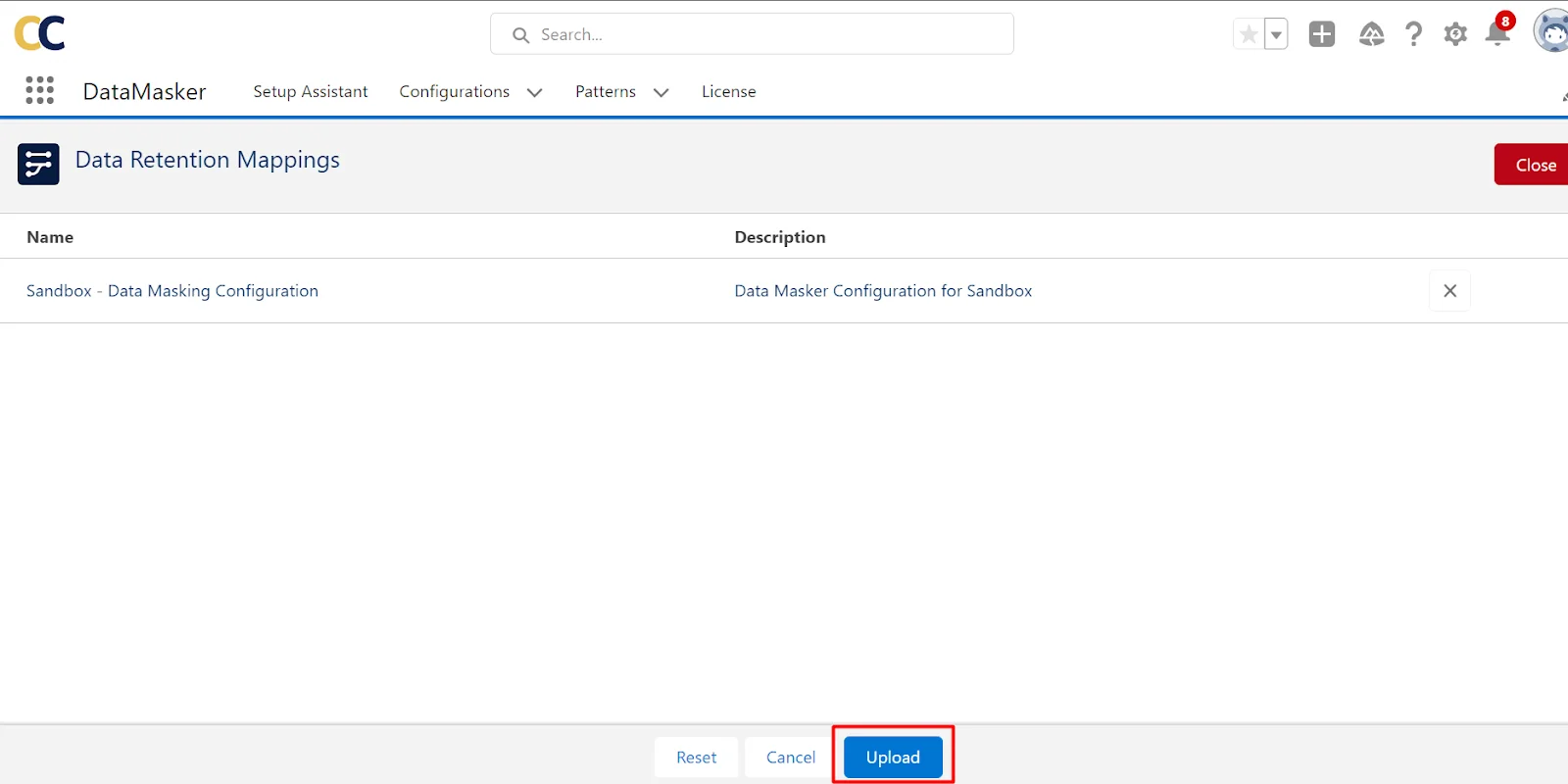
- After clicking on the ‘Upload’ button user will get a Success message in the pop-up.
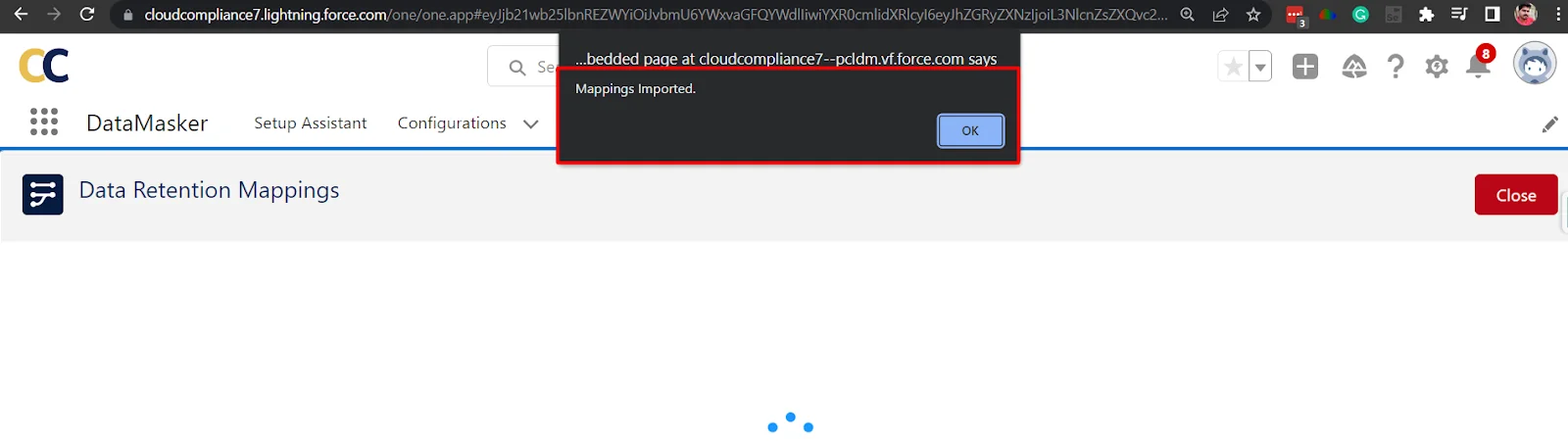
- Now click on the Close button to close the window
Here, the user successfully imported the mapping from the Source org to Destination org.
Likewise, the user can migrate the Data Masker configuration between the orgs without losing the information.
Import/Export handles Patterns during migration
DataMasker handles the Patterns while importing the Configuration from Source org to destination org.
If Destination org doesn’t have the patterns that are exported from the source org, then the patterns will be created automatically after importing and will be assigned to the respective field masking so that the user doesn’t need to create patterns manually for importing the configuration.
If the pattern is already available in the destination org, Data Masker updates the Pattern values as per the values stored in the exported file so that it will not create a duplicate pattern after migration.